Skip to content
Home
Product&Pricing
Android Cloud Phone
Use Cases
Cloud Phone for Gaming
Cloud Phone for Social Media
Cloud Phone for Automation
News
Game News
Cloud phone News
Help Center
Use Manual
IP Proxy
Contact US
X
Sign In
Home
vipplayer
Page 12
Search
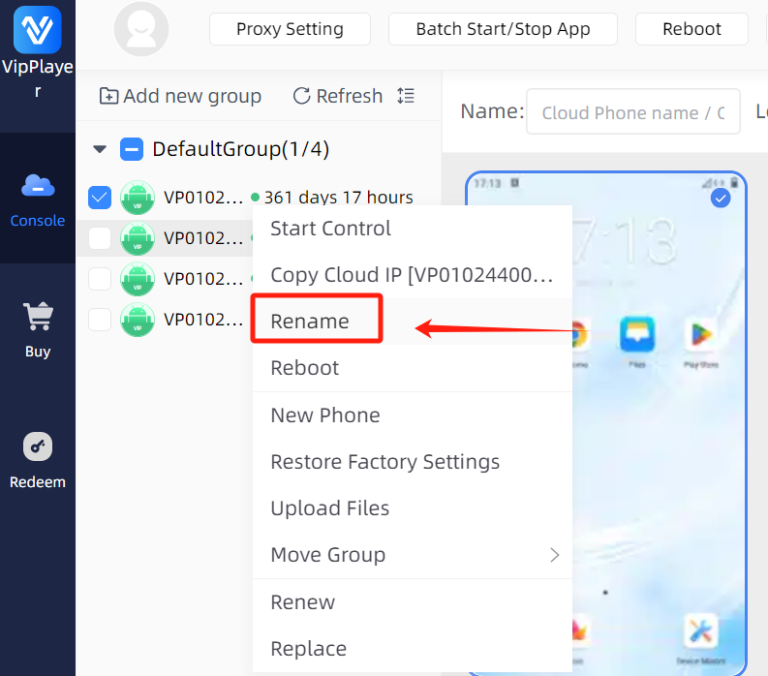
4.How to rename the cloud phone?
Step 1:Select the cloud phone whose name you need to change, right-click the mouse, and in the pop-up...
June 23, 2025
Read More
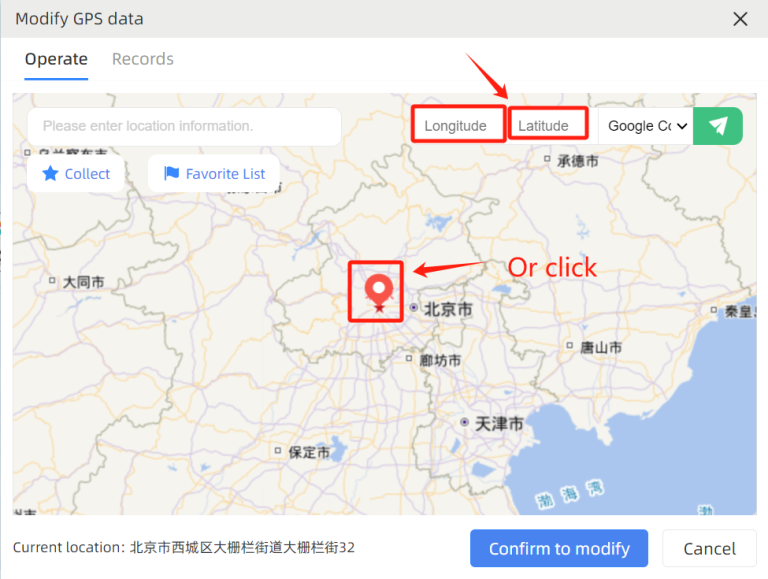
5.How to modify the GPS positioning of the cloud phone?
Step 1:Select the cloud phone for which you want to modify the location. Step 2:Enter the cloud phone...
June 23, 2025
Read More
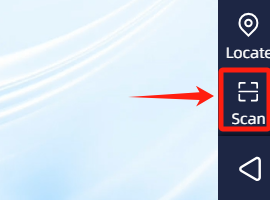
6.How to scan a QR code on the cloud phone?
Step 1:Click the “Scan” button on the right side of the cloud phone. Step 2:Click “Add...
June 23, 2025
Read More
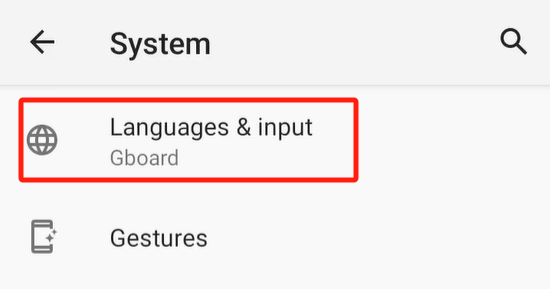
7.How to modify the language and time zone of the cloud phone?
Step 1:Click on “Settings” in the cloud phone, find “System”, then click on “Languages&input”,...
June 23, 2025
Read More
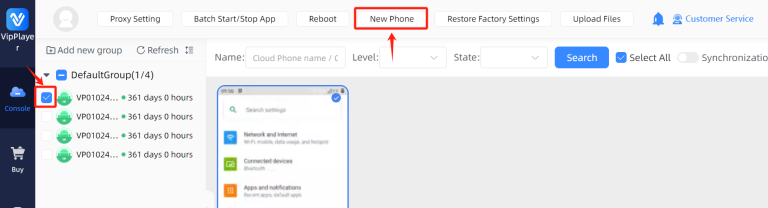
8.How to operate the one-click new phone?
Step 1:Select the cloud phone you need to reset, and then click on “New Phone” at the top....
June 23, 2025
Read More
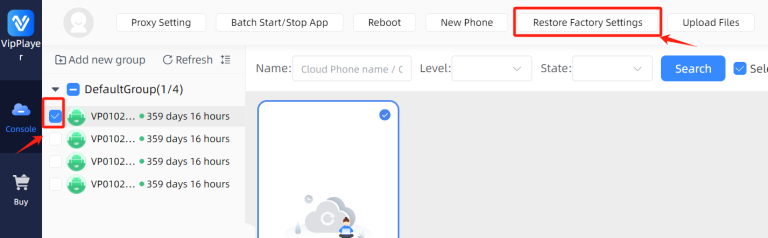
9.How to restore factory settings?
Step 1:In the upper left corner of the client, select the cloud phone you need to operate, and click...
June 23, 2025
Read More
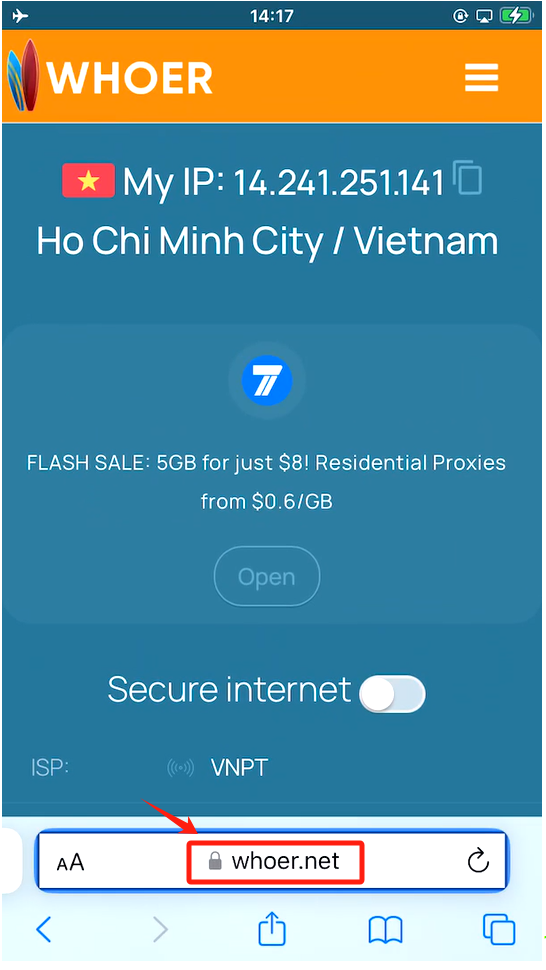
10.How to test the Internet environment of the cloud phone?
Step 1:Open a browser in your cloud phone and type “www.whoer.net” to find out the security...
June 23, 2025
Read More
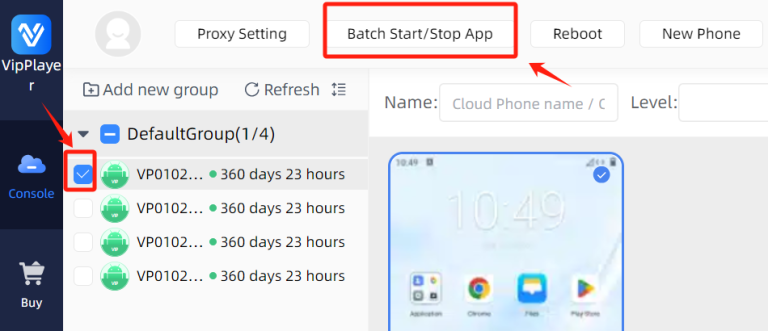
11.How to start and stop applications in batches?
Step 1:Select the cloud phone you need to operate. Step 2:Click the “Batch Start/Stop APP”...
June 23, 2025
Read More
12.How to copy and paste?
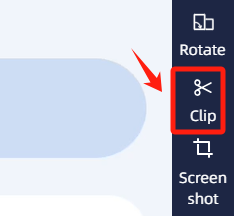
Step 1:Copy the required content and click on the “clip” button on the right. Step 2:Select...
June 23, 2025
Read More
13.How to adjust the grouping of cloud phone?
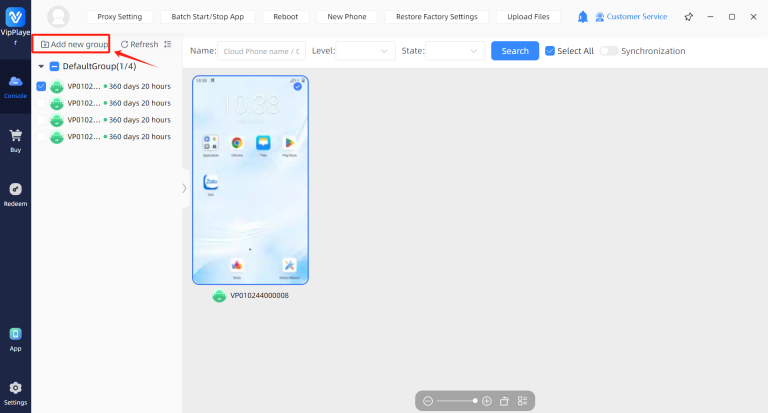
Step 1:Click the“Add new group”button on the top left corner. Step 2:Input the group name, and click...
June 23, 2025
Read More
No posts found
Posts pagination
1
…
11
12
13
…
21
VIPPLAYER
2026-03-21 01:12:33
If you are looking for business cooperation or bulk purchases, please contact us.
您的工单我们已经收到,我们将会尽快跟您联系!
Telegram
Email
Submit
Cancel
@vipplayercloud
@VIPPLAYER_GLOBAL
Contact Us: